
I built TerrainStudio so that every map I made could pull from the best source for the job, not just the one I happened to have an account with. A lot of those sources are free, but some of them want to know who's asking, and that's what these keys are: free accounts in your name that let TerrainStudio fetch data on your behalf.
First, the good news. TerrainStudio works without any keys at all. Open it straight out of the box and you can already capture:
• Elevation from Mapzen (global, including the sea floor), GMRT (ship-surveyed ocean floor) and USGS 3DEP (10 m across the US)
• Imagery from Landsat (back to 1984), NASA's daily satellite imagery (back to 2000, plus night lights and Blue Marble) and NAIP aerial photography across the US
• Ten map styles from OpenFreeMap, country and state colour mattes, and normal and curvature maps computed from your terrain
• Vectors and 3D: coastlines, borders, streets, railways, contour bands and 3D buildings
That's a real toolkit, and plenty of projects never need more. But you will be limited. Each key below opens another door, and a couple of them are the difference between "a map" and "the map I had in my head."
Mapbox
Mapbox elevation, Mapbox satellite imagery, and your own Mapbox Studio map styles — 5 minutes. Start here.
OpenTopography
Four elevation grids: Copernicus GLO-30, EU bare-earth, SRTM15+ and GEBCO — 5 minutes
GPXZ
1 m lidar elevation for small, close-up hero shots — 3 minutes
Copernicus Data Space
Sentinel-2: global 10 m imagery in ten different looks — 15 minutes. The densest setup of the four.
All four have free tiers, and none of them asks for a card to get started.
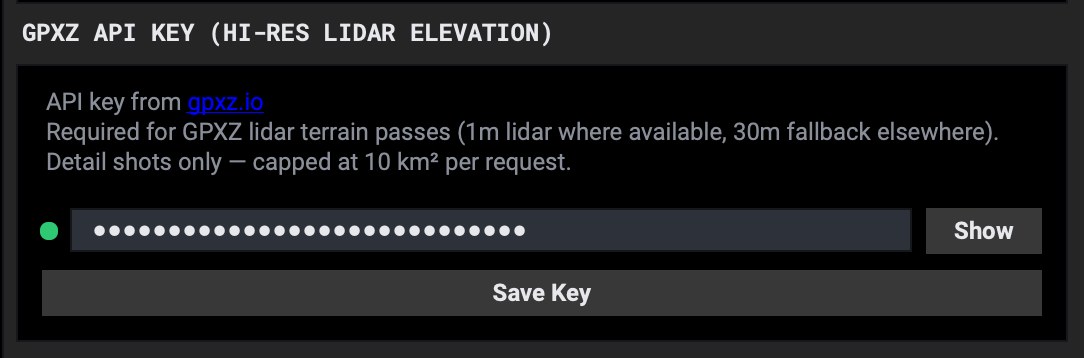
Every key goes in the same place: open Settings (the gear, top right) and stay on the API SETTINGS tab. Each account has its own box. Paste the key, click Save Key, and the small dot beside it turns green.
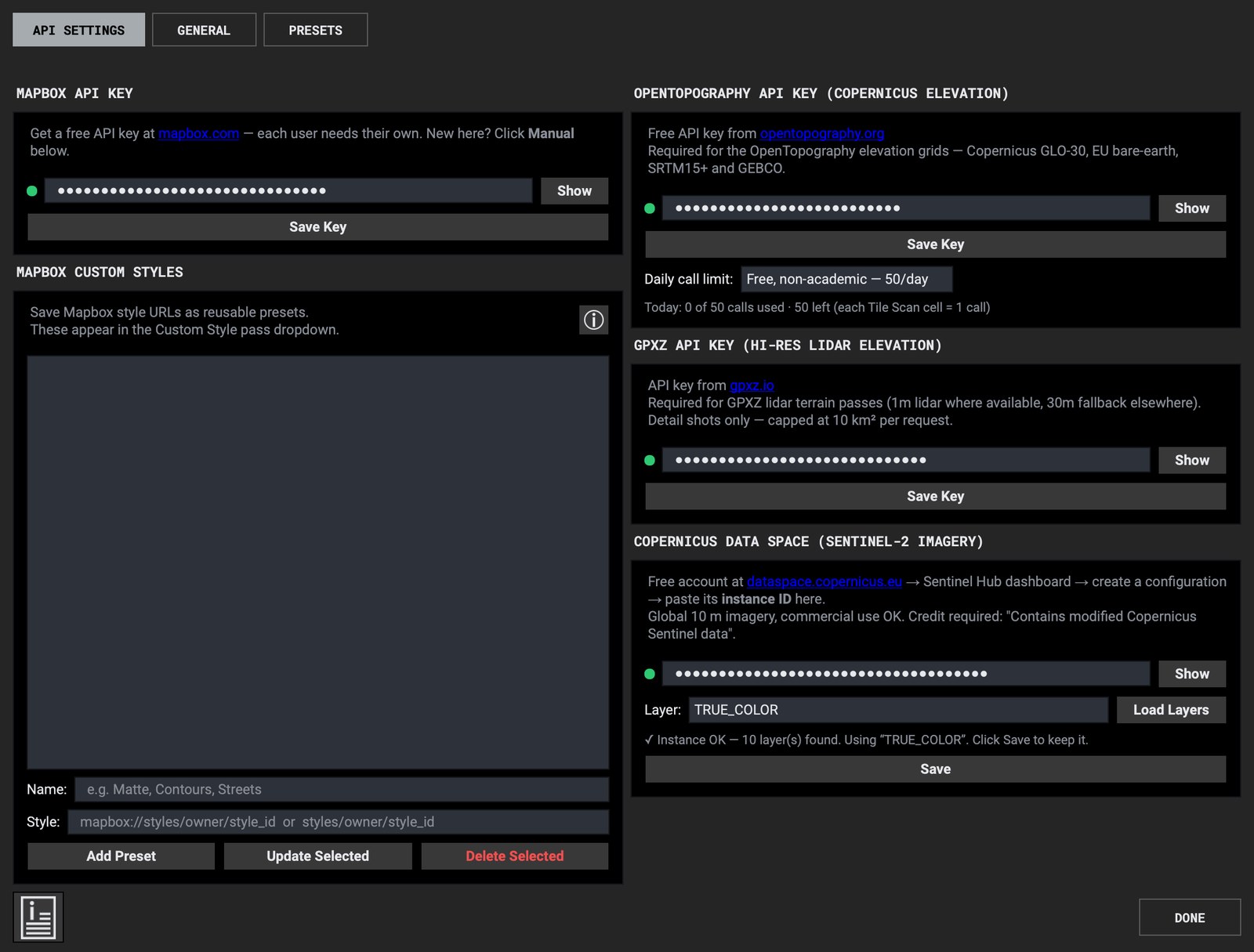
What the green dot means. Green means a key is there. It doesn't mean the key has been checked, because TerrainStudio doesn't spend your free requests just to test a key. The first time a capture actually uses it, you'll know. If a service ever refuses a key, the dot turns red so you know to go back and check it.
If you only set up one account, make it this one. It's quick, the free tier is generous, and the one key covers three things: Mapbox's own elevation, its satellite imagery, and any map style you design yourself in Mapbox Studio. That last one is how you get a map that looks like your show instead of a stock basemap.
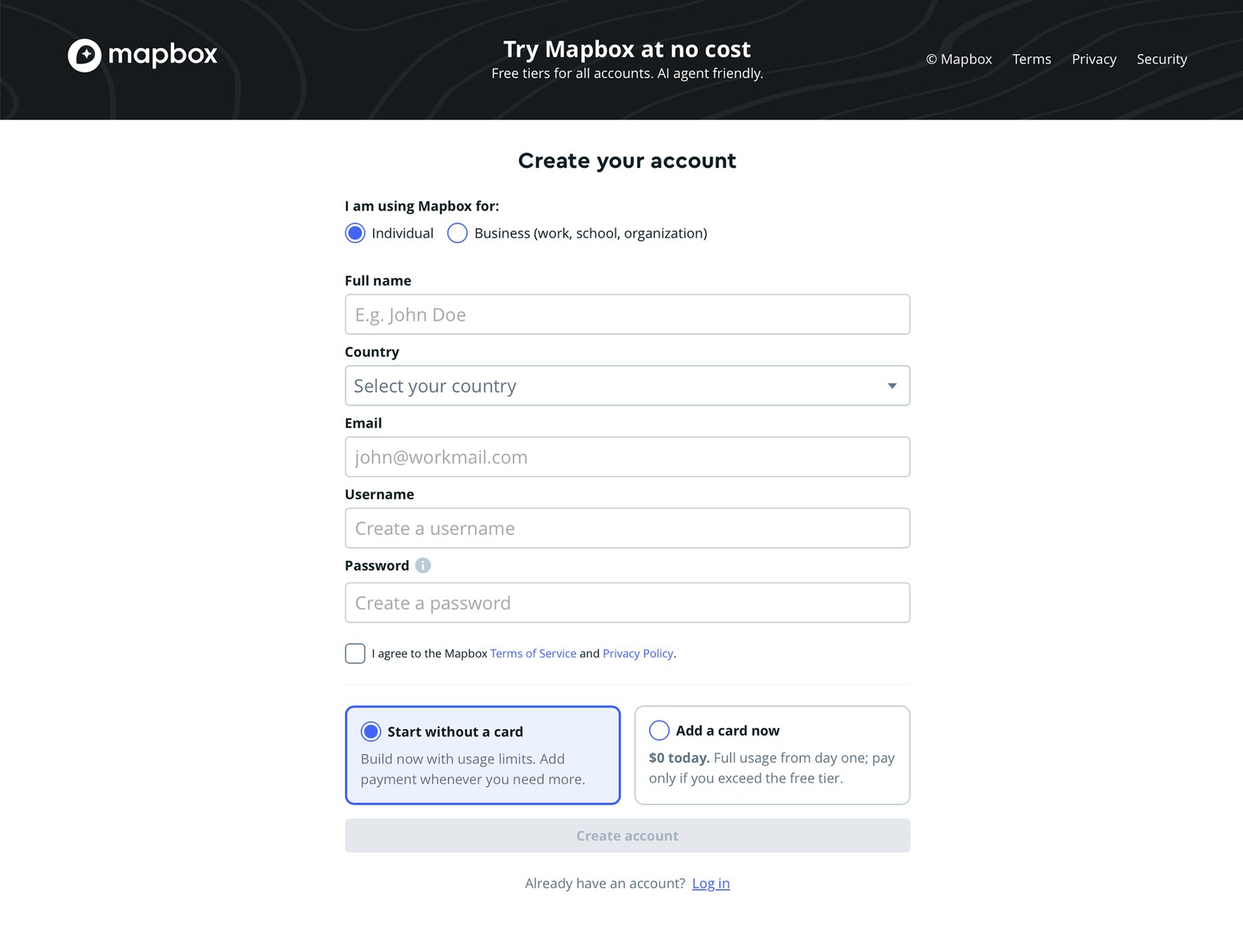
1. Go to mapbox.com and click Sign up.

2. Fill in the form. Choose Individual unless you're signing up for a company, and pick Start without a card. You don't need one for TerrainStudio.
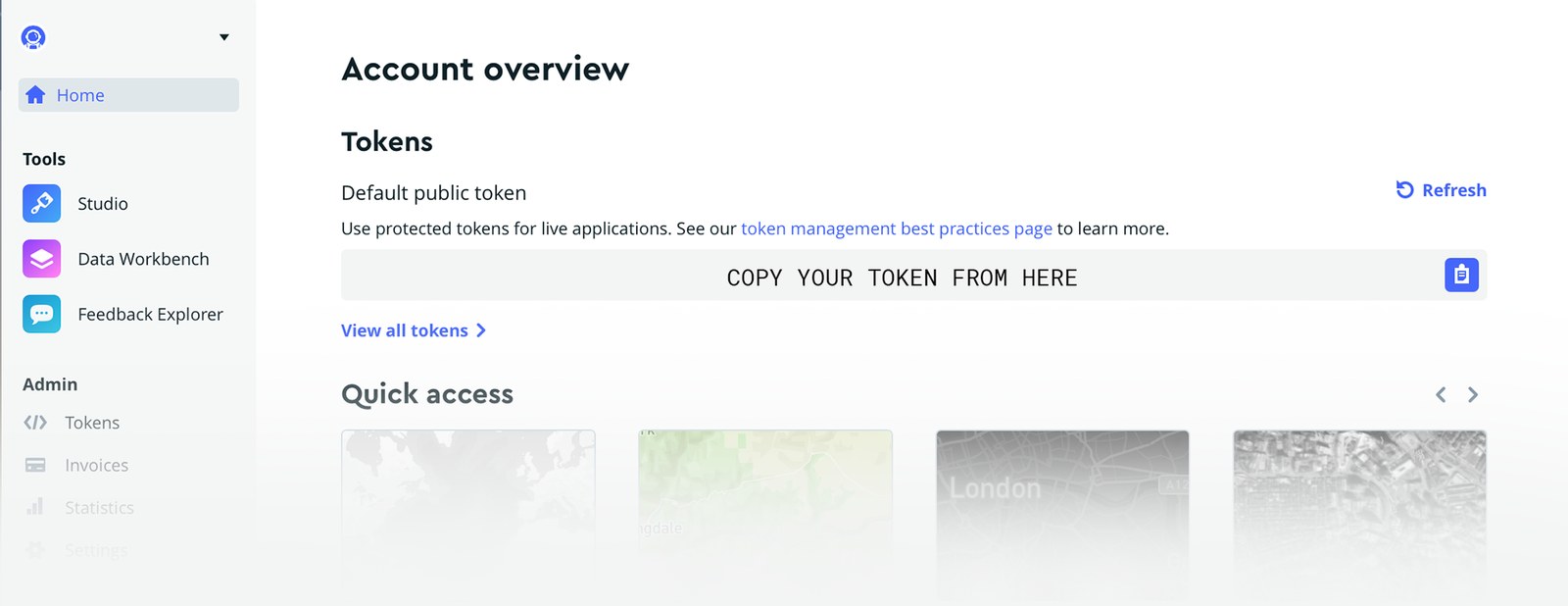
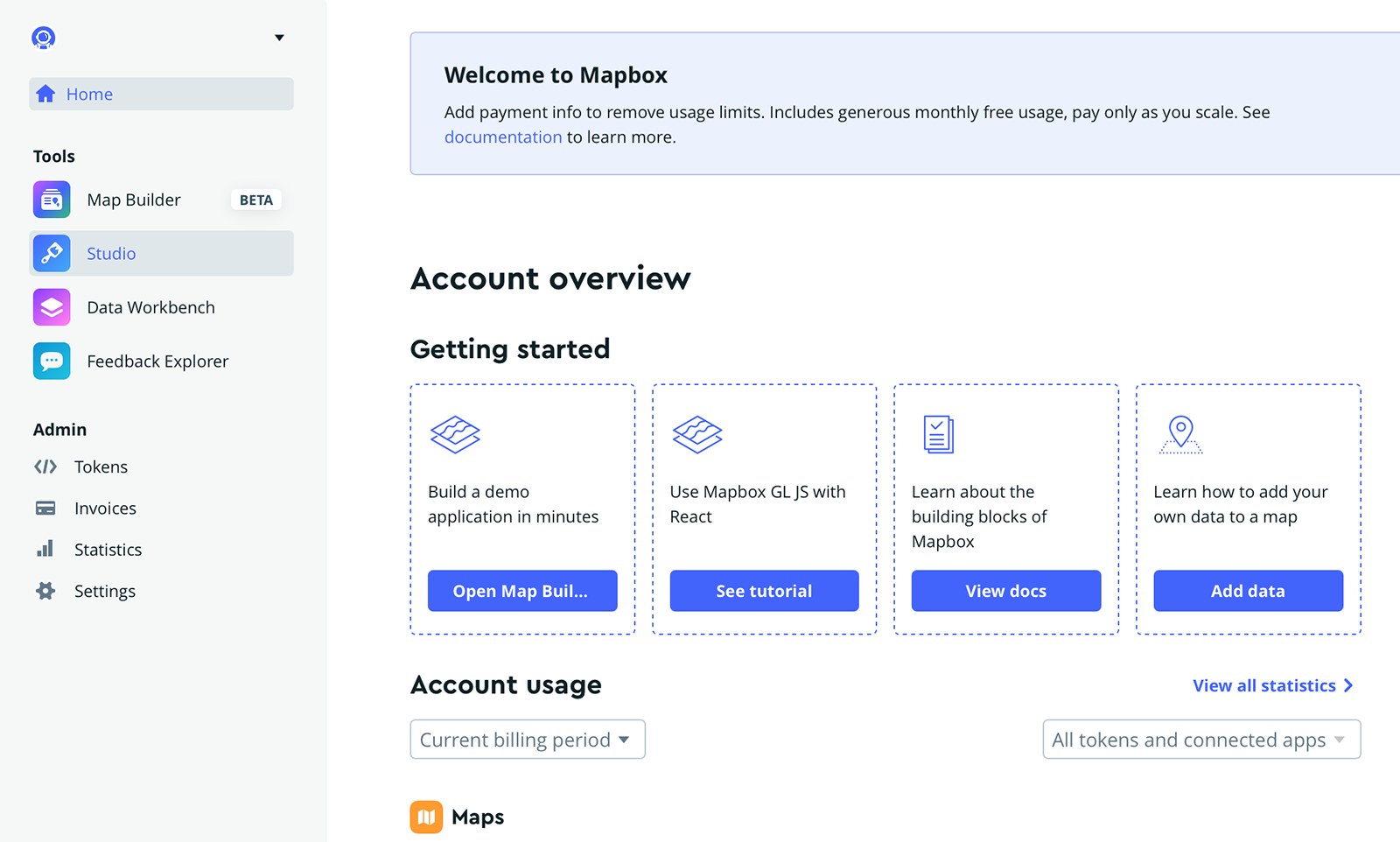
3. Once you're in, your Account overview shows your Default public token (it starts with pk.). Click the copy button on the right.
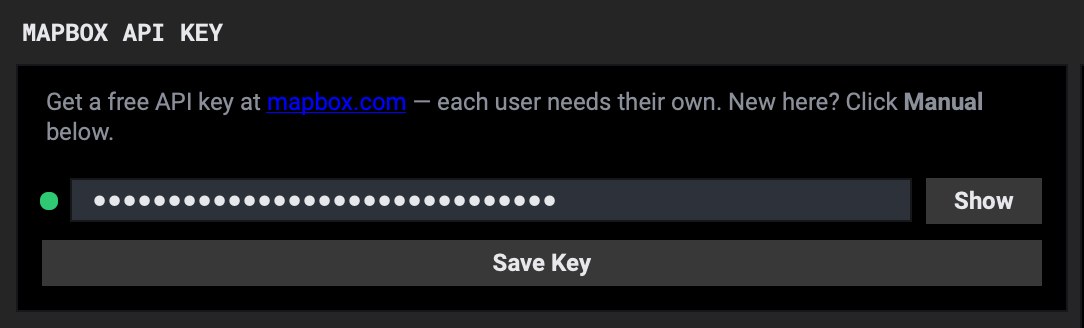
4. In TerrainStudio, paste it into Mapbox API Key and click Save Key.
Leave the Refresh link alone. Next to your token there's a Refresh link. As far as I can tell it replaces the token with a new one, which means the copy saved in TerrainStudio stops working until you paste the new one in.
OpenTopography is a research archive run out of UC San Diego, and one free key gets you four elevation grids:
• GLO-30: the Copernicus 30 m global surface, my default outside the US
• EU DTM: bare earth for Europe, with trees and buildings stripped off, so a forested hill shows its real shape
• SRTM15+ and GEBCO: land and sea floor in one grid, for wide ocean shots
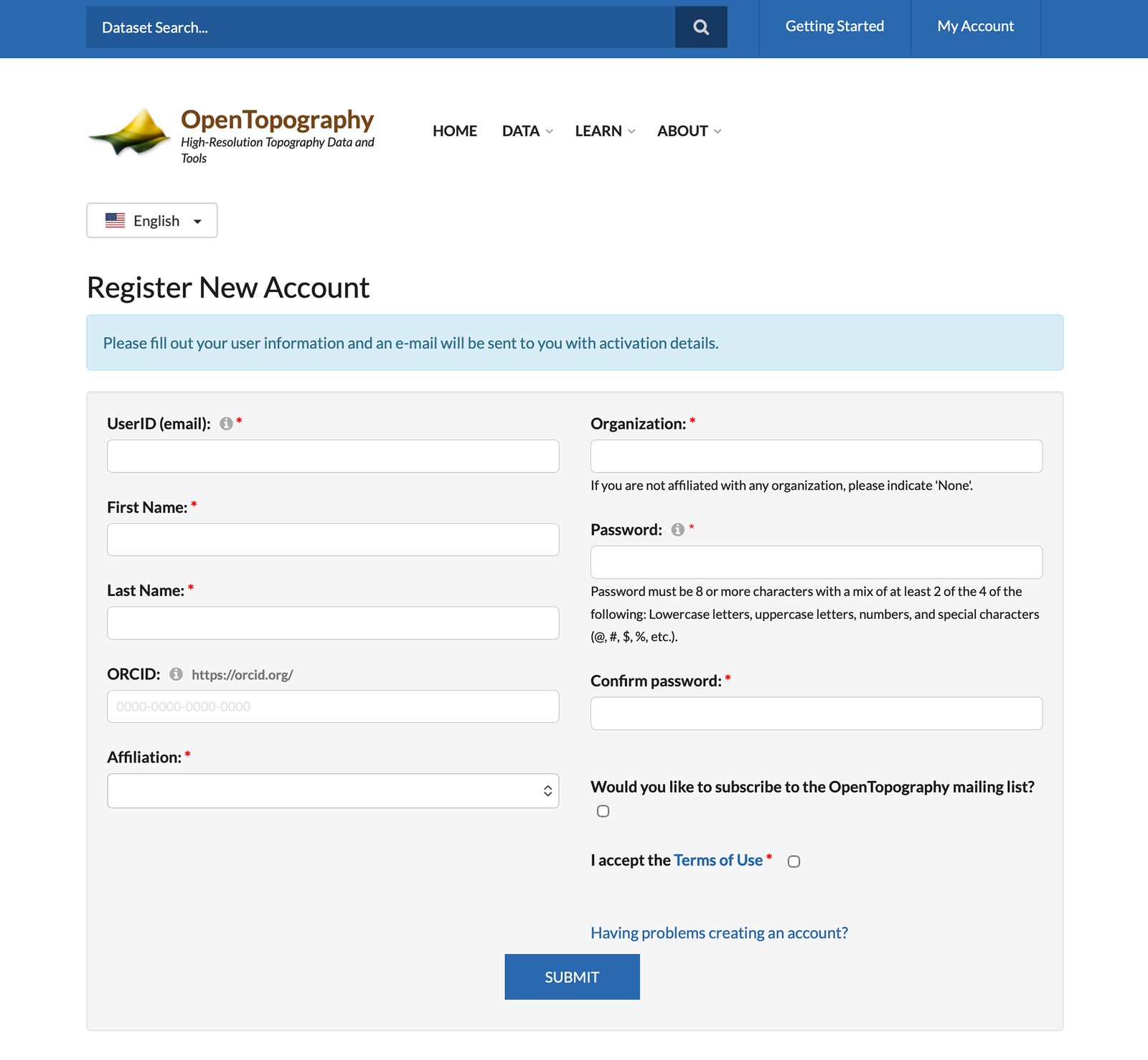
1. Go to portal.opentopography.org and fill in Register New Account. It asks for an organization; if you don't have one, type None. Then activate the account from the email they send.
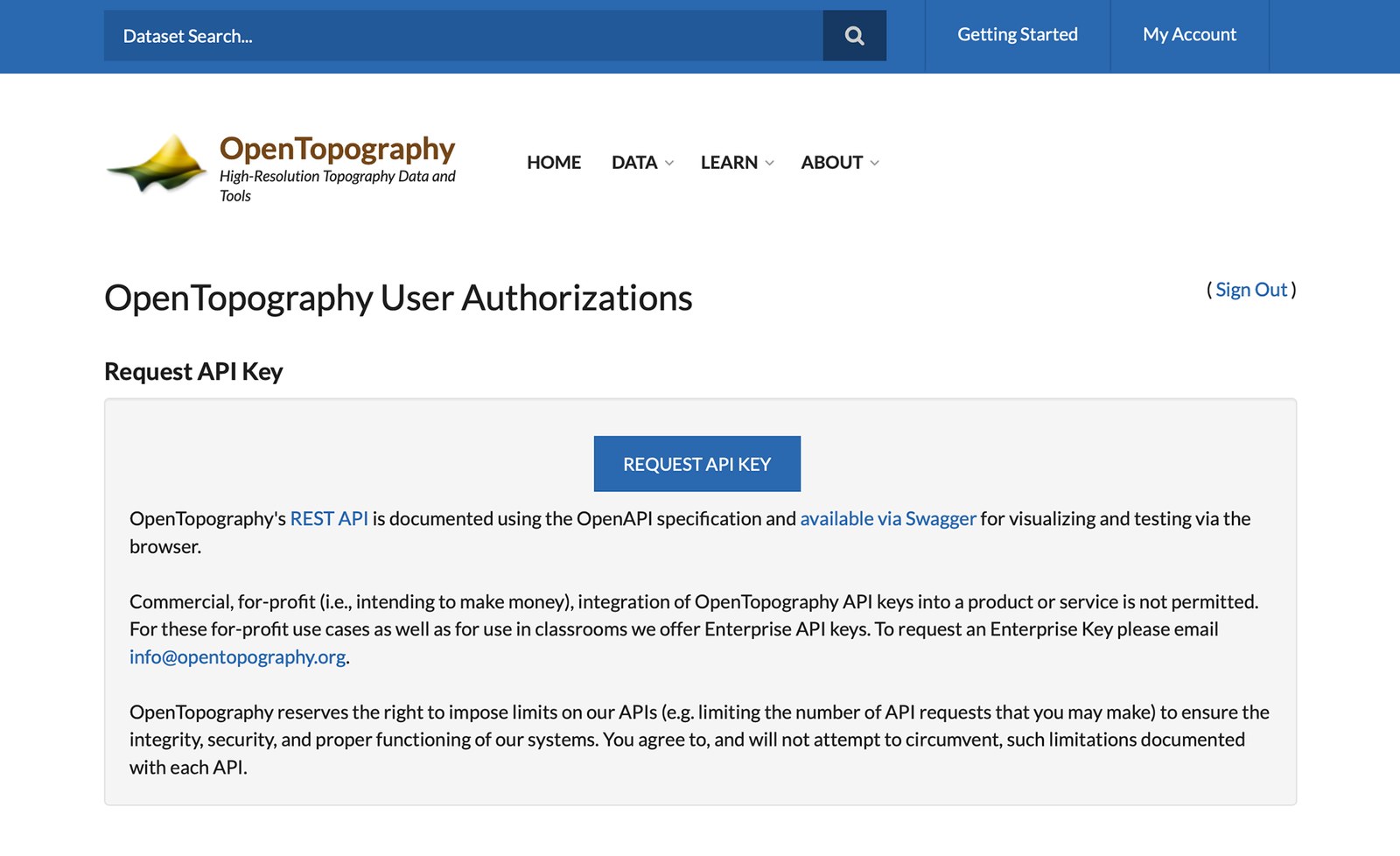
2. Log in, go to My Account, and click Request API Key.
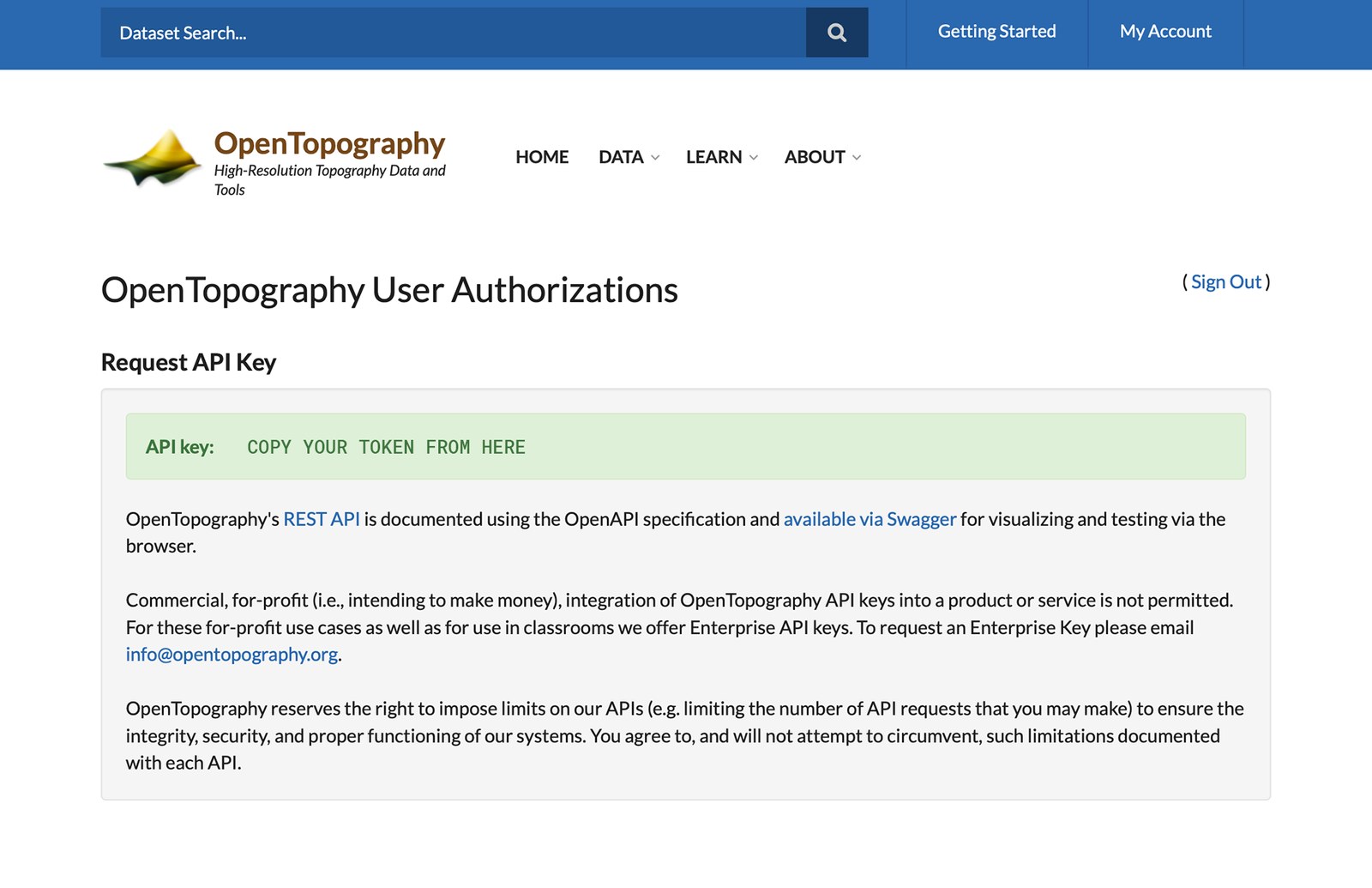
3. Your key appears in the green box. Copy it.
4. In TerrainStudio, paste it into OpenTopography API Key and click Save Key.
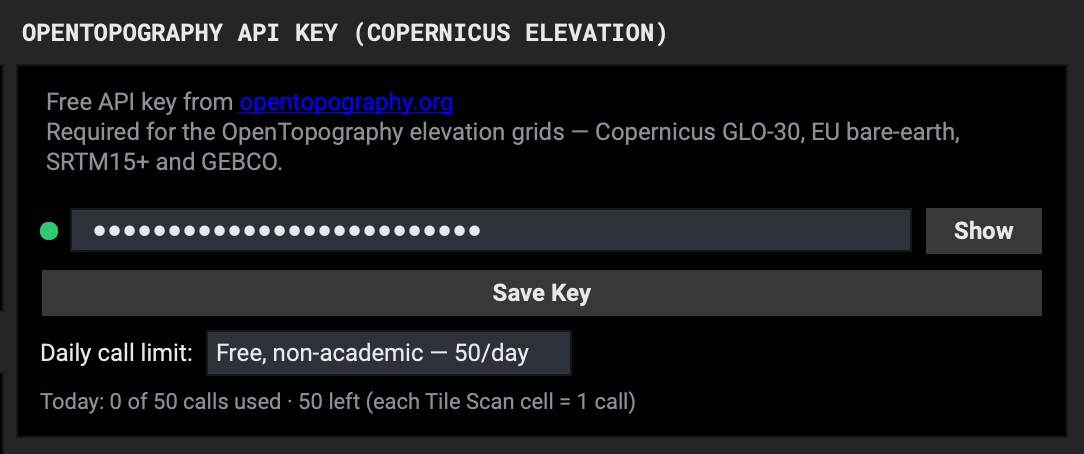
Mind the daily limit. A free key allows 50 requests a day. A normal capture uses one; a big Tile Scan uses one per tile. TerrainStudio keeps count right under the key, so you'll always know where you stand.
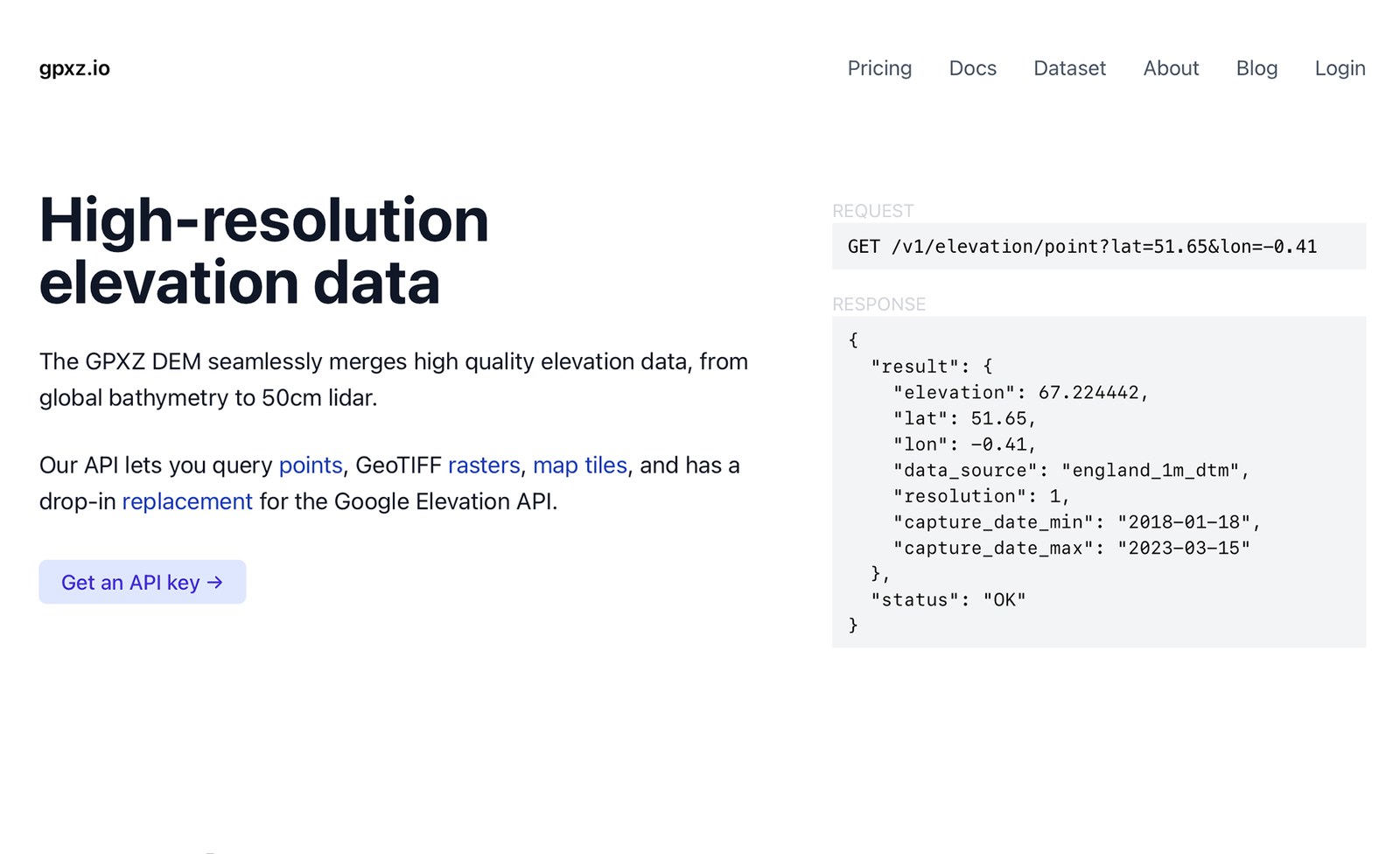
GPXZ is the one for close-ups. Where an area has been surveyed by lidar, you get terrain down to about a metre: individual ridges, riverbanks, road cuts. Where it hasn't, it falls back to 30 m. It's built for small frames, capped at 10 km² per capture, so think hero shot, not country.
1. Go to gpxz.io and click Get an API key.
2. Register with an email and password.

3. Open API Keys and copy your key (it starts with ak_).
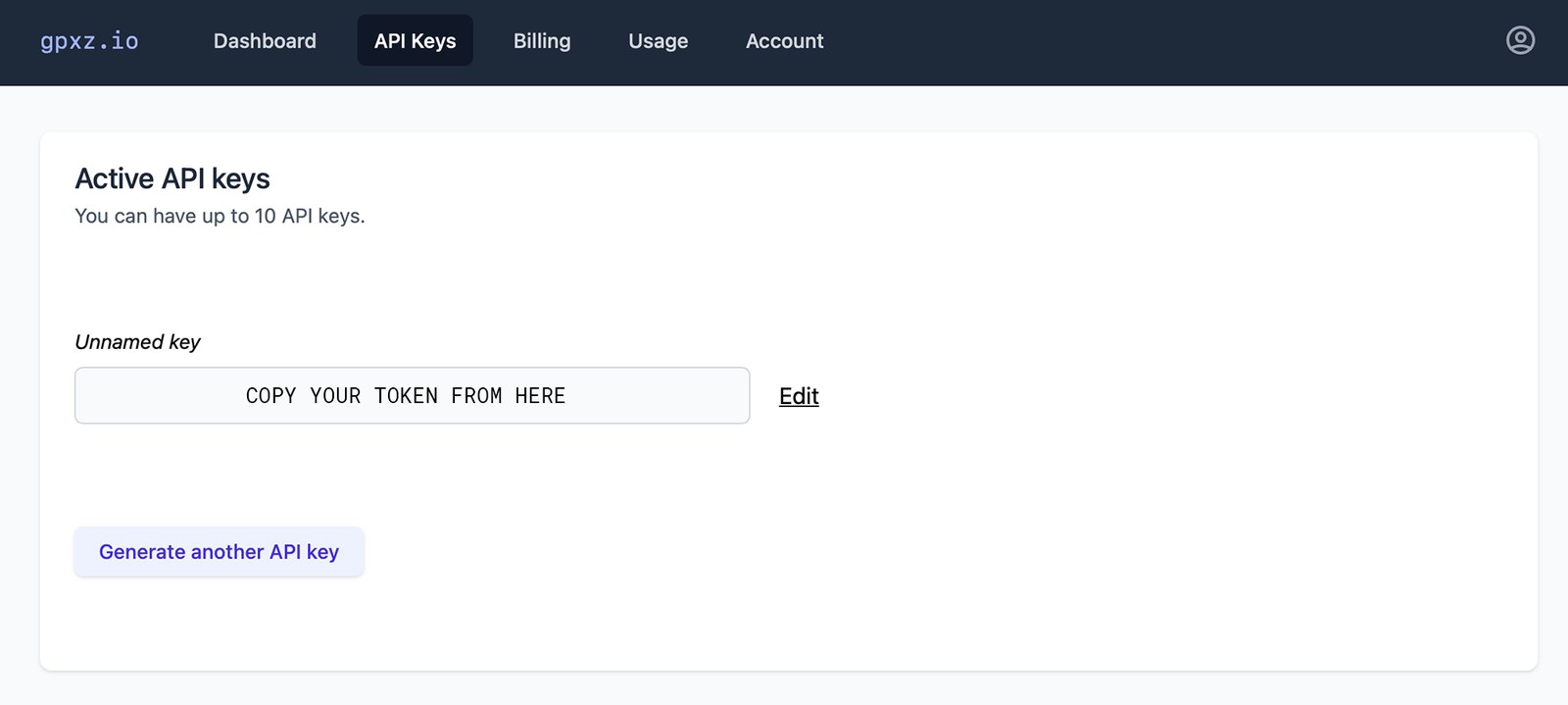
4. In TerrainStudio, paste it into GPXZ API Key and click Save Key.
I'll be honest: this one is dense. It's more clicks than the other three combined, and the screens were built for scientists, not motion designers. You only do it once, though, and the steps below are the shortest route I've found. What you get is Sentinel-2, the European Space Agency's satellites: global imagery at 10 m, with ten looks from the one account, including natural colour, false-colour infrared, bathymetric, geology, moisture and vegetation.
What you're making is a configuration: a saved recipe on Copernicus's side. Its instance ID is what TerrainStudio needs.
1. Go to dataspace.copernicus.eu and click Login.
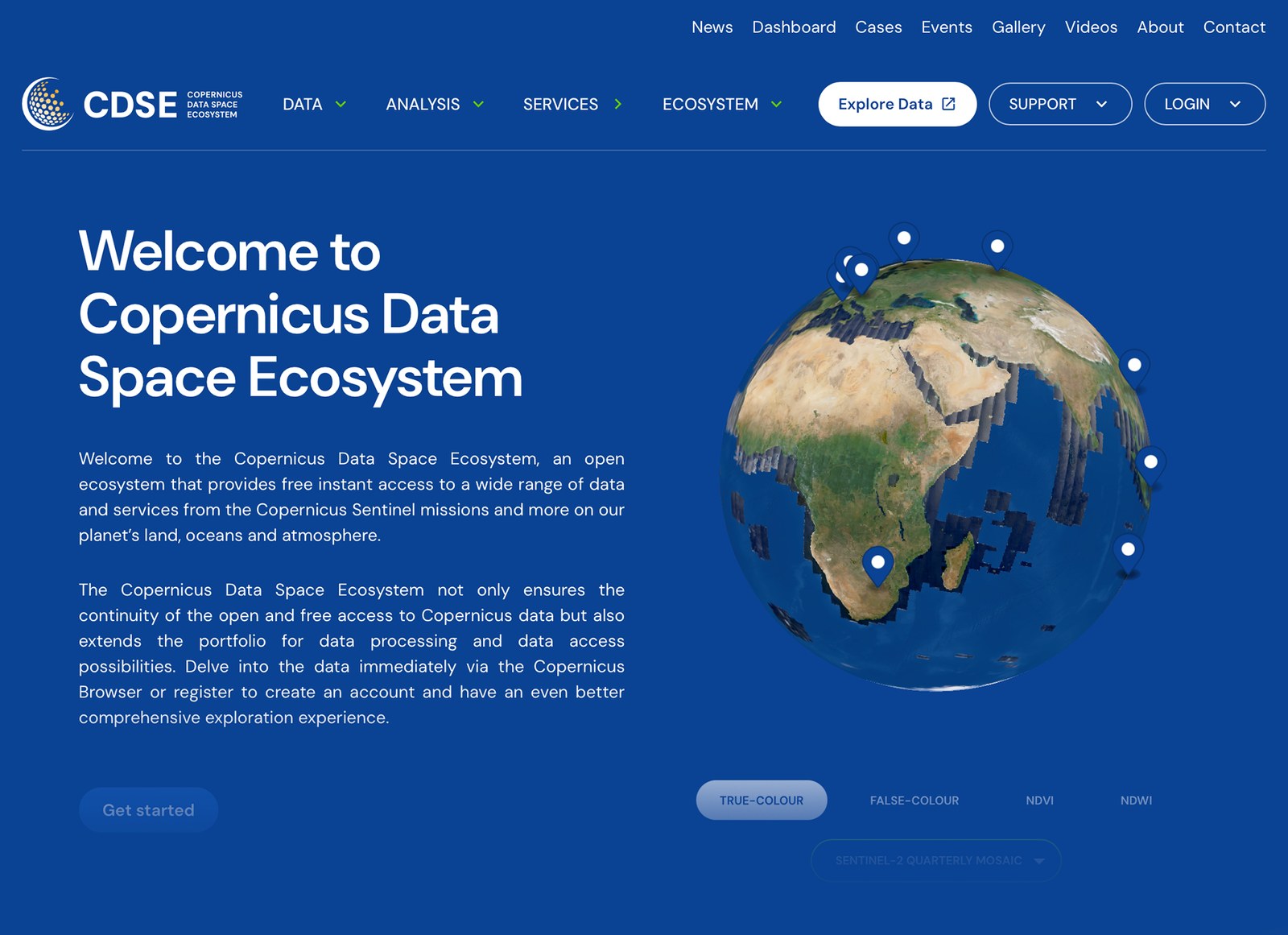
2. On the sign-in page, click Register.
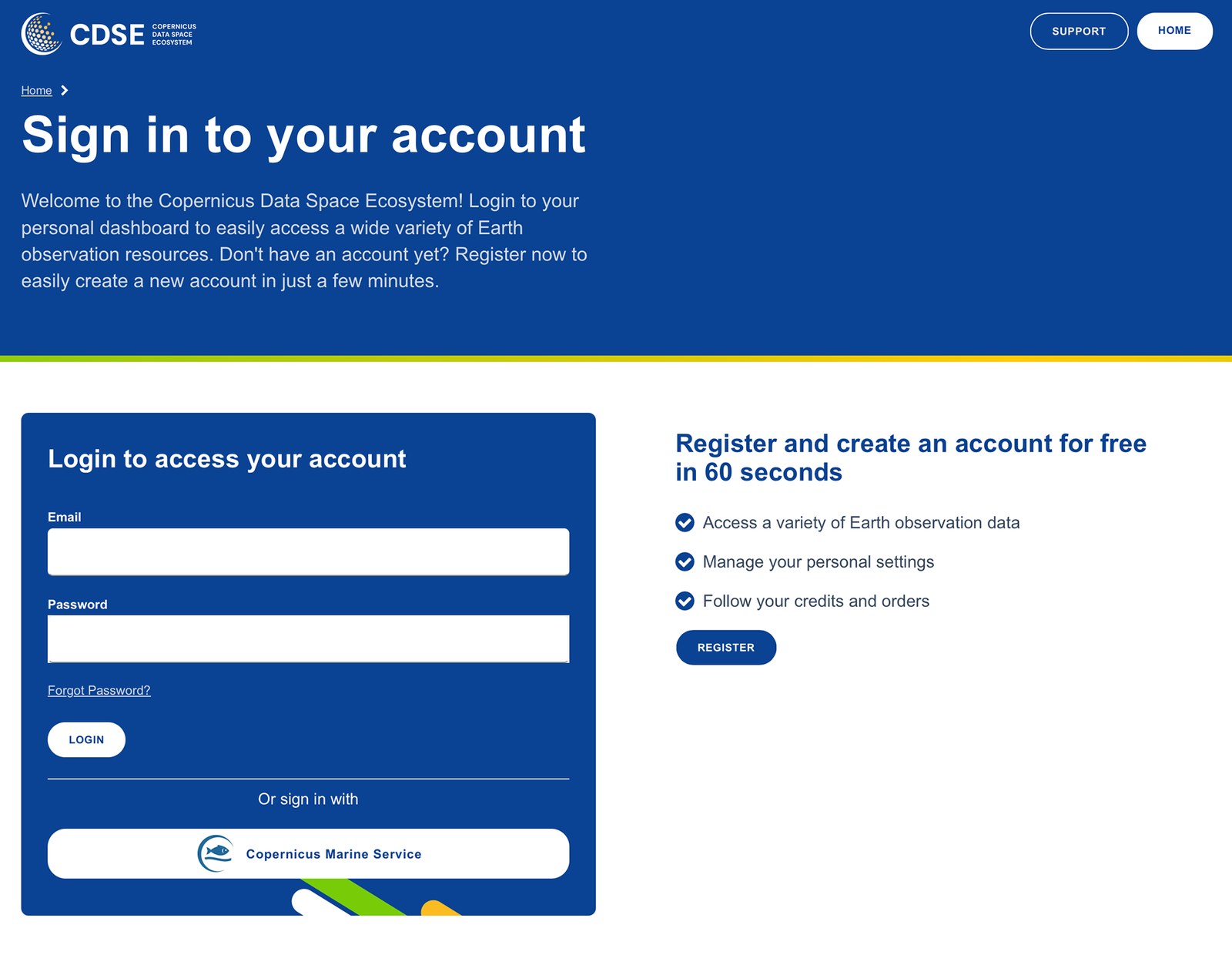
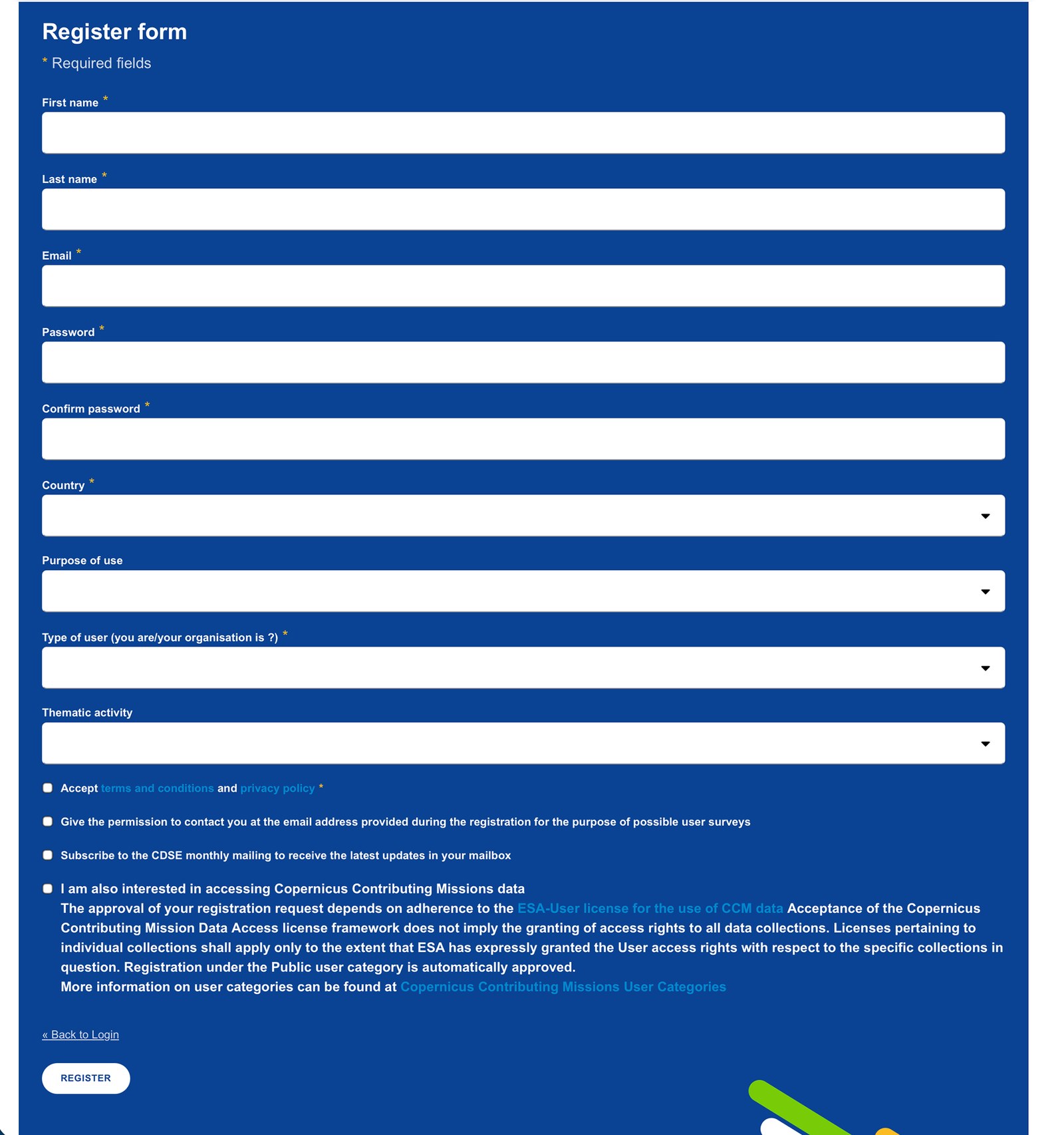
3. Fill in the form and accept the terms. The dropdowns about purpose and user type are just for their statistics; pick whatever fits. Then confirm the email they send you.
4. Log in, open the Login menu, and choose Sentinel Hub. That's the dashboard where the configuration lives.

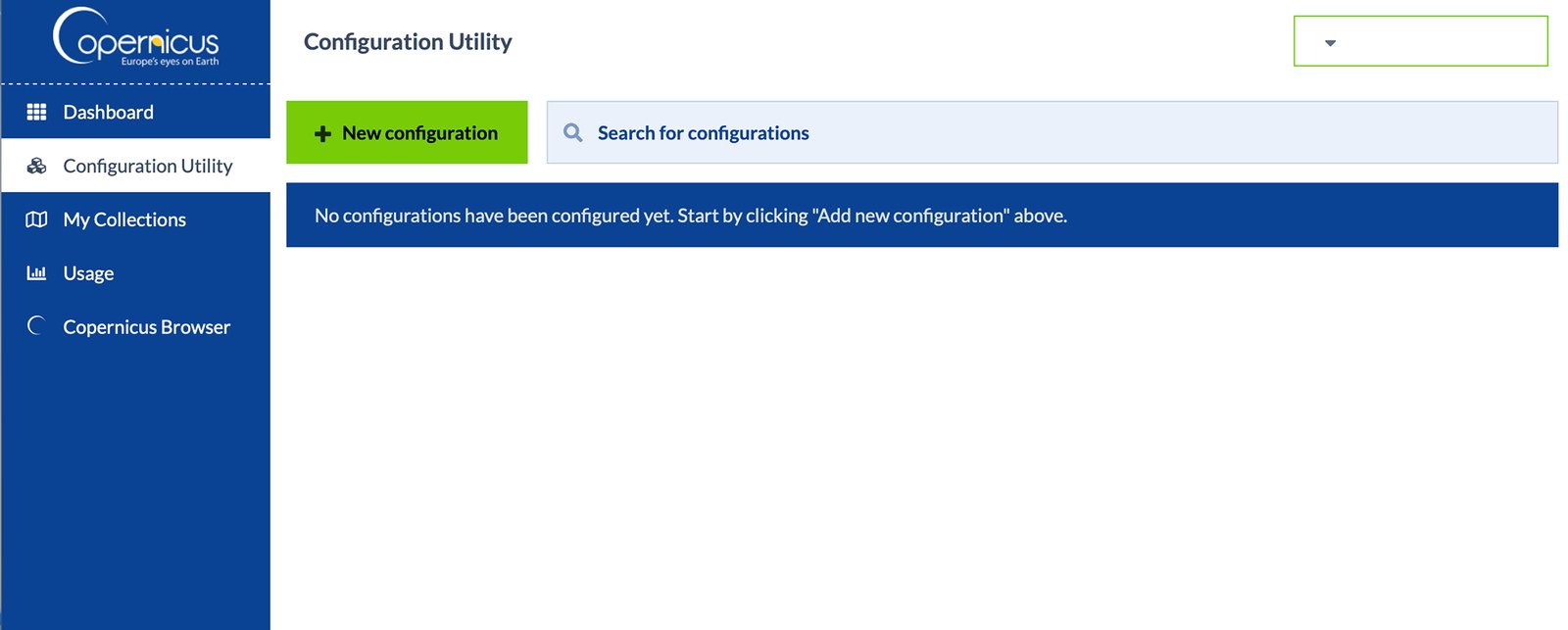
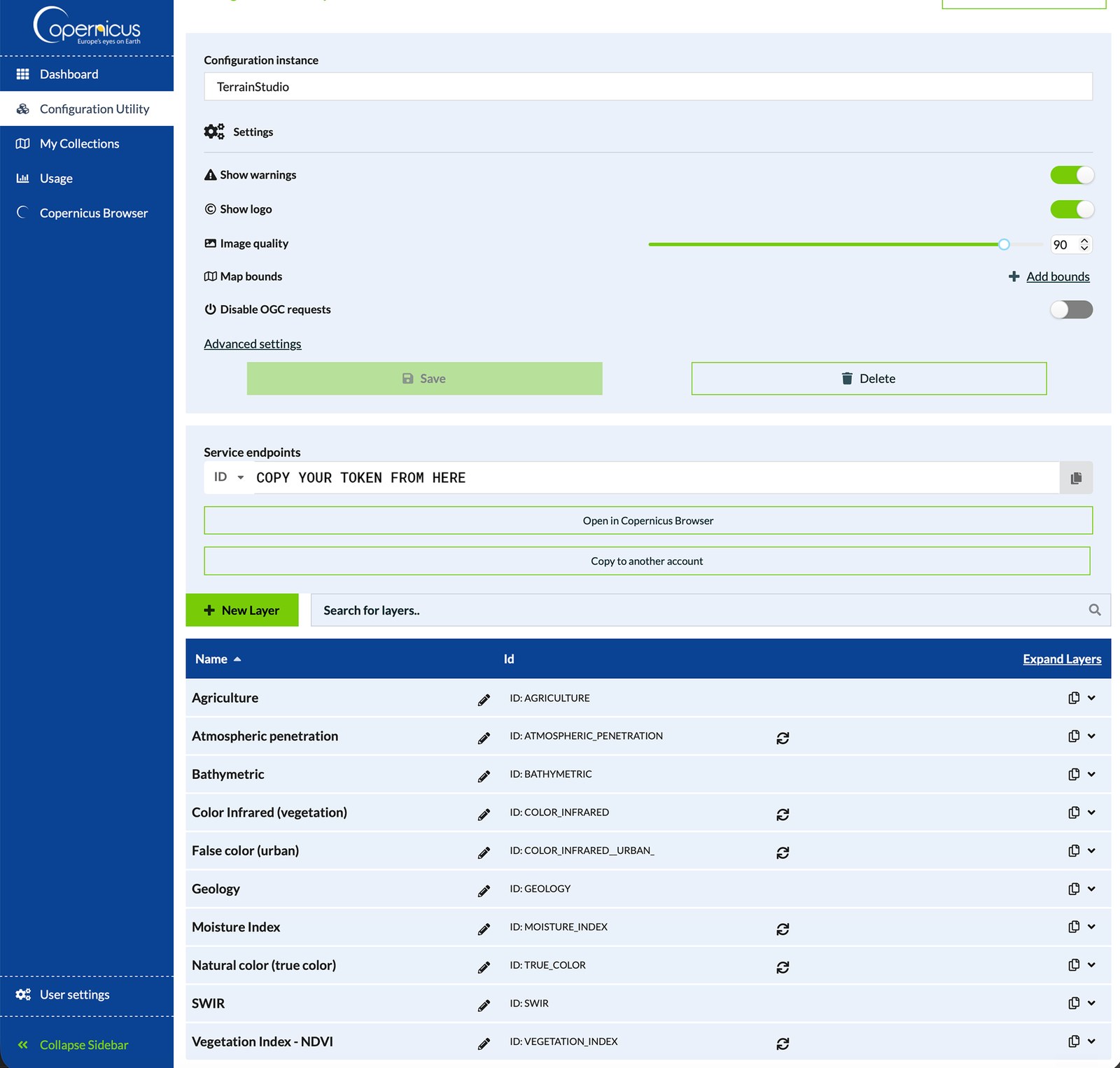
5. In the left sidebar, open Configuration Utility and click New configuration.
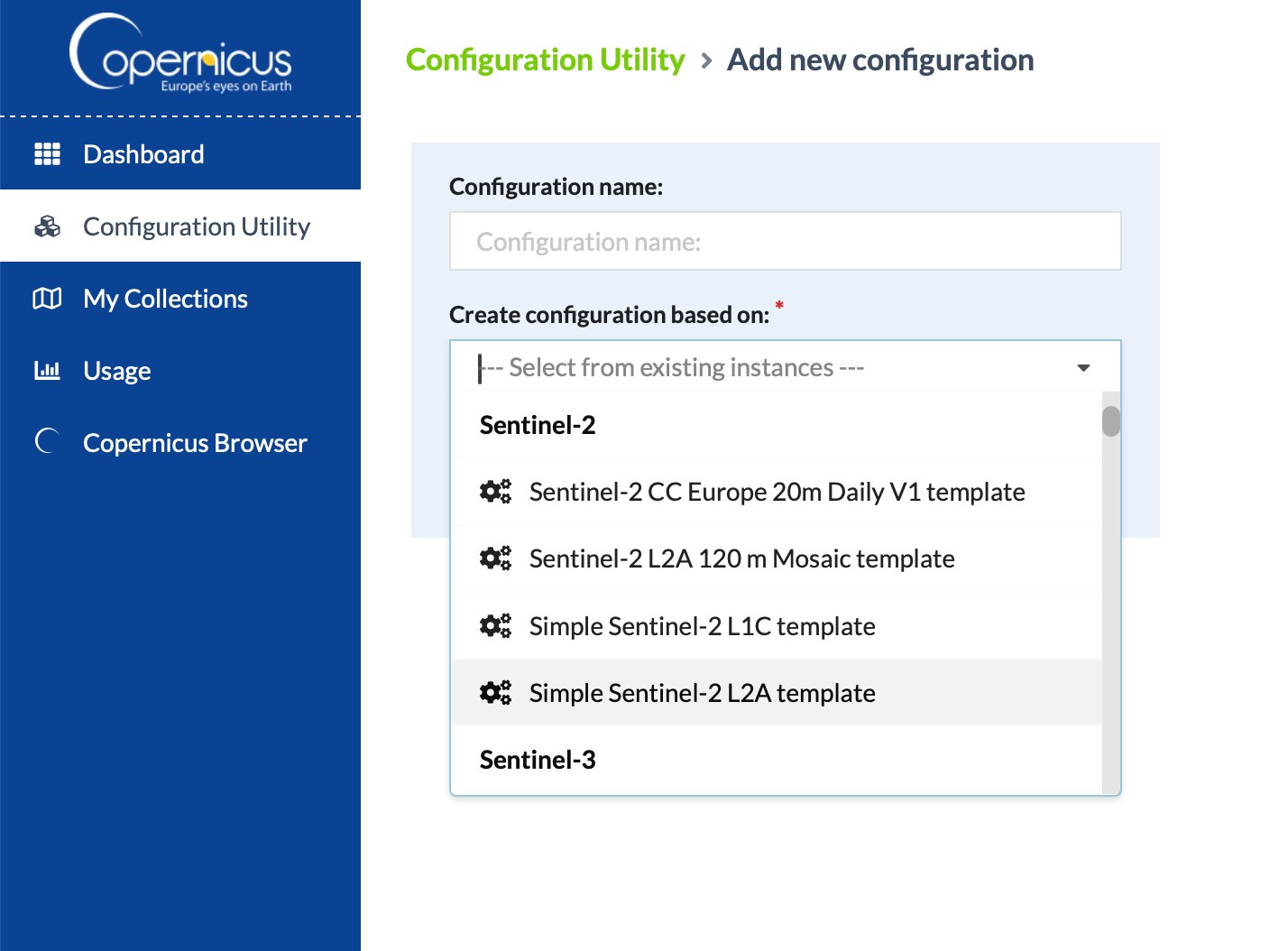
6. Name it TerrainStudio so you'll recognise it later. Then, under Create configuration based on, choose Simple Sentinel-2 L2A template. Be careful here: there are several similar names, and this is the one you want. Click Create configuration.
7. The template builds all ten layers for you. Under Service endpoints, copy the ID with the copy button on the right.
8. In TerrainStudio, paste it into the Copernicus Data Space box and click Load Layers. You should see "Instance OK, 10 layer(s) found." Pick the layer you want (natural colour is TRUE_COLOR) and click Save.
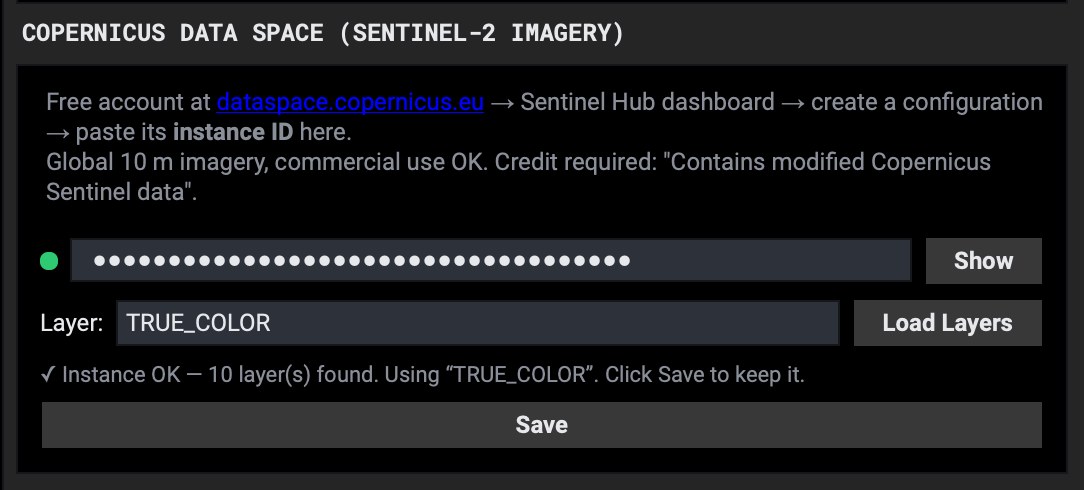
Added more layers later? TerrainStudio only knows about the layers that were there when you last clicked Load Layers. If you add or rename layers in your configuration, come back to Settings and click Load Layers again, and the new ones will show up.
Why L2A? L2A imagery has been corrected for the atmosphere, so colours are cleaner and more consistent than the raw L1C version. It's the one I'd pick for anything going on screen.
Credit it. Sentinel imagery is free for commercial use, but Copernicus asks that you credit it: "Contains modified Copernicus Sentinel data [year]." Put that in your production's credits.
Your keys stay on your computer. TerrainStudio keeps them in its settings file and uses them only to fetch the data you ask for. Nothing is sent to me. They're tied to your accounts and your free allowances, so treat them like passwords: don't post them, and don't share them. If one ever leaks, make a new one in that provider's dashboard and paste it in.
Use Show next to any key to check what you pasted. The most common problem is a missing first or last character.
The dot next to a key is red
The service refused the key. Copy it again from the provider's dashboard and paste it fresh.
Copernicus Load Layers fails
Check you copied the configuration's ID (not its name), and that it was made from the Simple Sentinel-2 L2A template.
OpenTopography stops partway through the day
You've reached the 50 free requests. It resets the next day.
GPXZ won't capture a frame
The frame is bigger than 10 km². Frame in tighter.
Still stuck? Email me at studio@skylab5.com and I'll help you sort it out.
This is the part of the Mapbox key I use most. Mapbox Studio lets you design your own map: your palette, labels on or off, roads as heavy or as faint as you like. TerrainStudio will capture any style you build there, pixel-aligned with every other layer. It's how you get a map that looks like your show instead of a stock basemap.
It uses the same Mapbox key you've already saved. There's nothing new to sign up for.
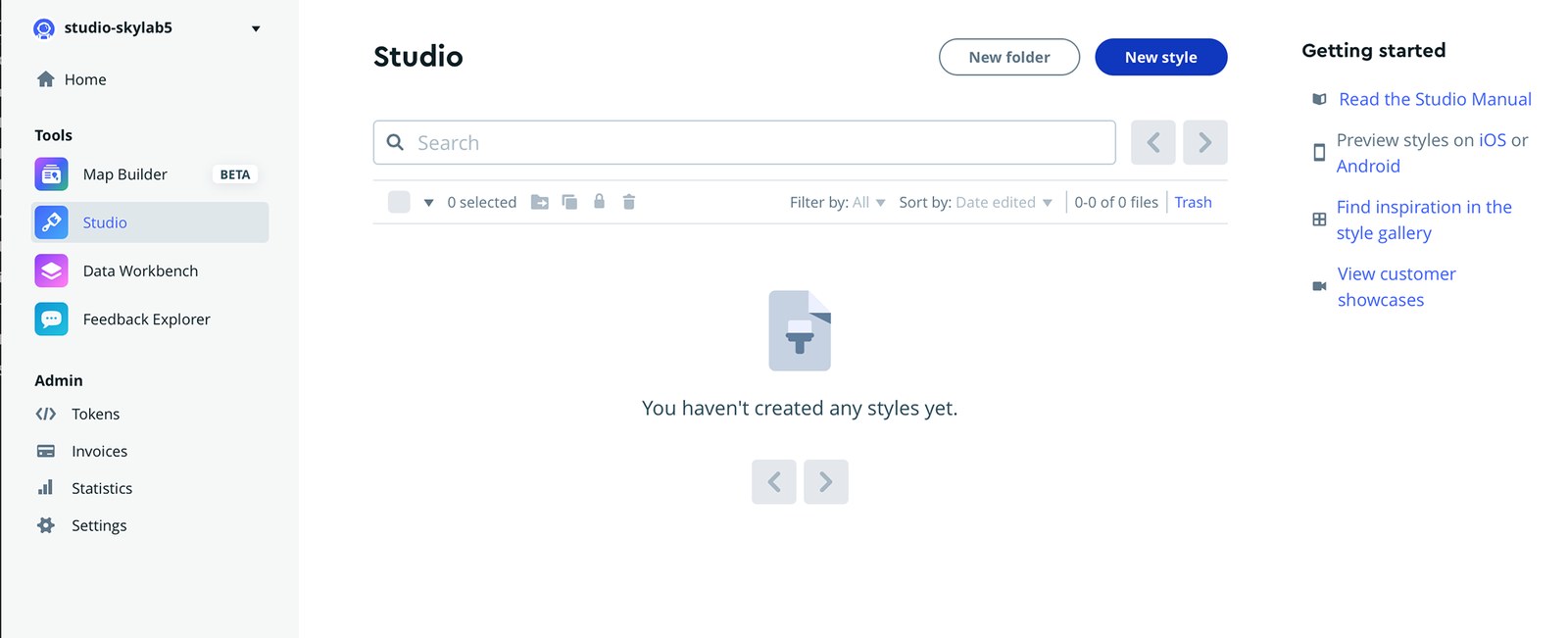
1. Log in to your Mapbox account and click Studio in the left sidebar.
2. Click New style.
3. Here's the one step that matters most. Mapbox opens on Standard, already ticked. Don't use it. Under Other options, click Classic styles instead.
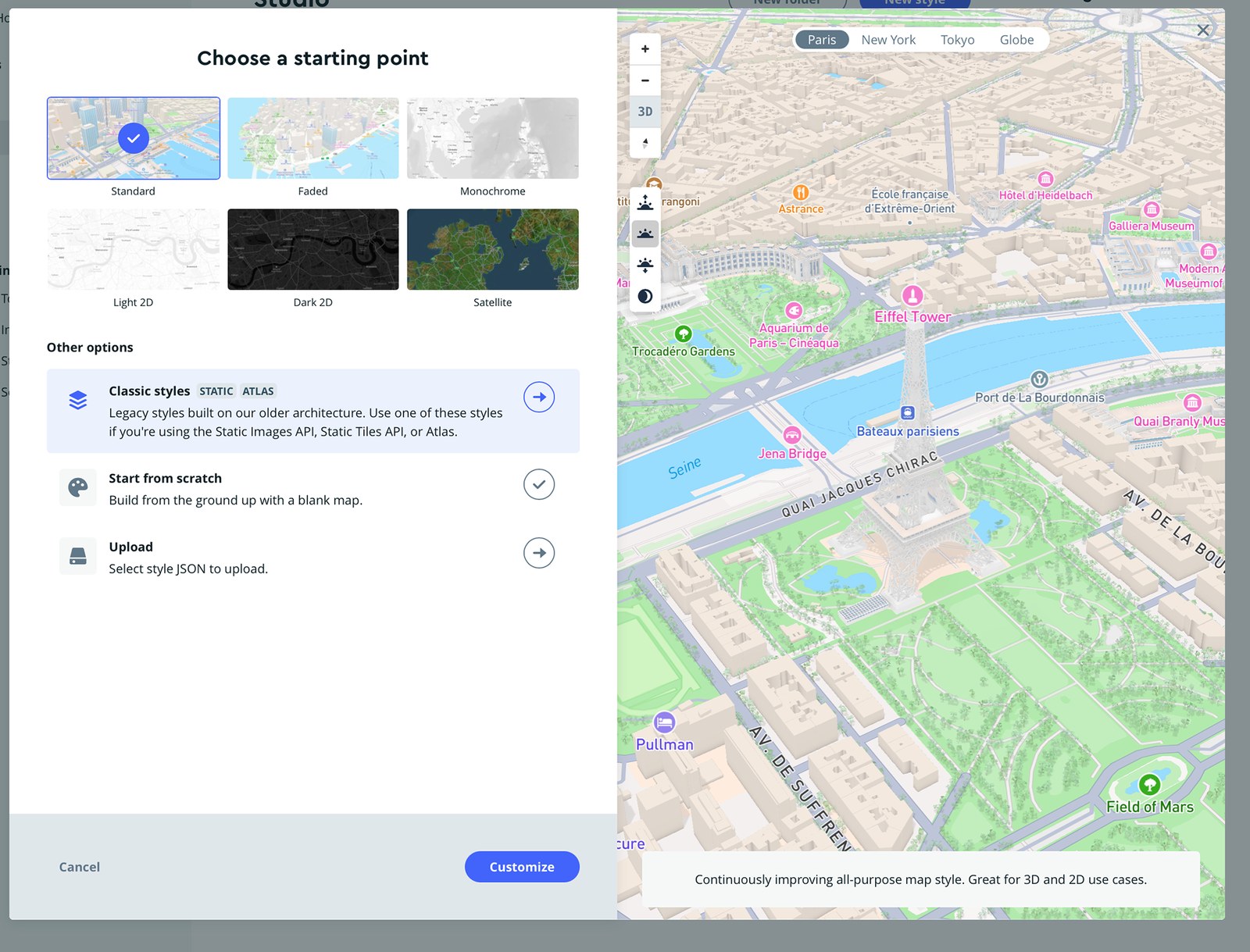
4. Pick whichever classic style is closest to the look you're after (Streets, Outdoors, Light, Dark, Satellite Streets and so on), then click Customize.
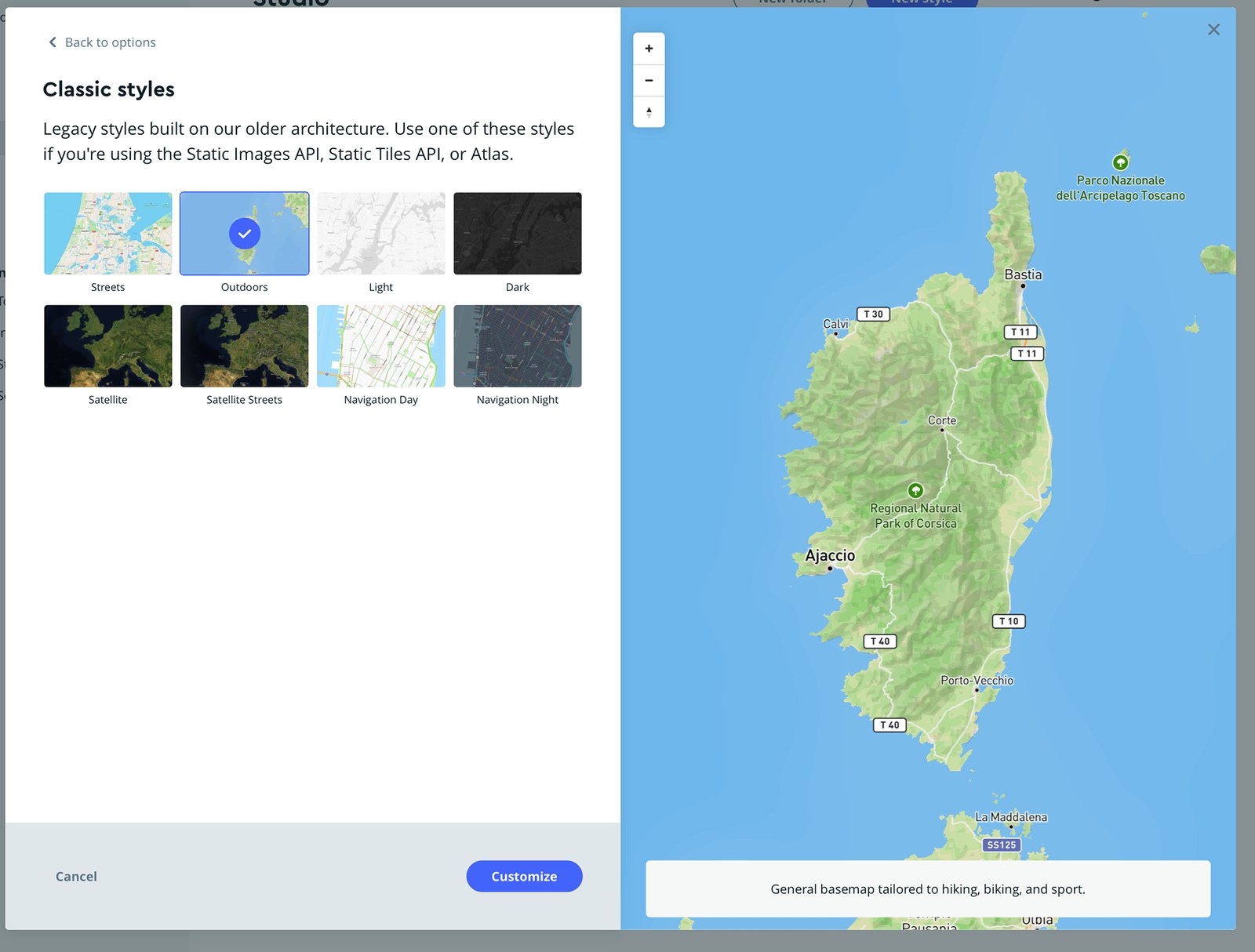
5. Now it's yours. Every layer on the left (labels, roads, water, land) can be recoloured, restyled or switched off.
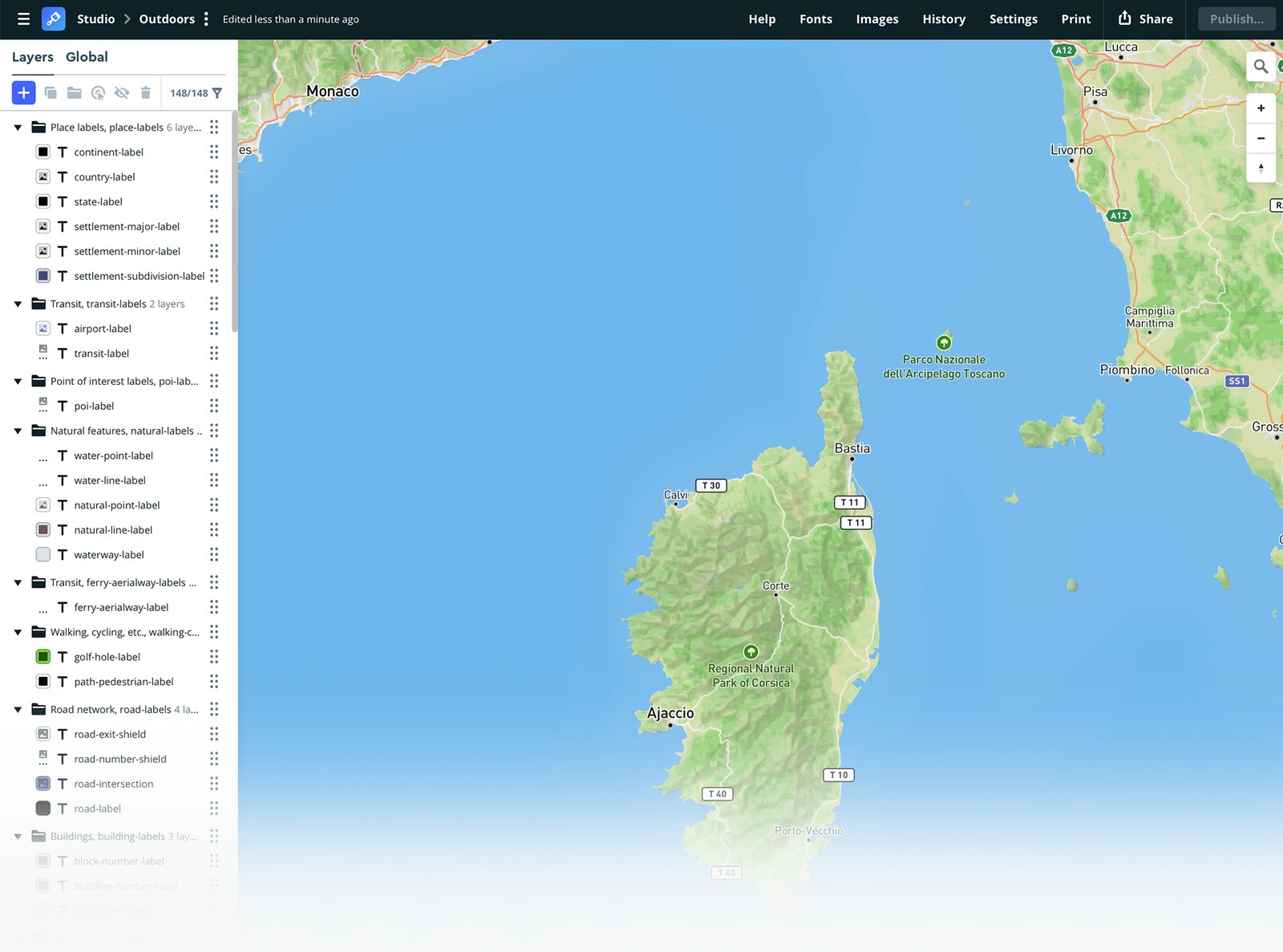
6. When you're happy, click Publish… at the top right. TerrainStudio can only capture a published style, and if you change it later, publish again to pick up the changes.
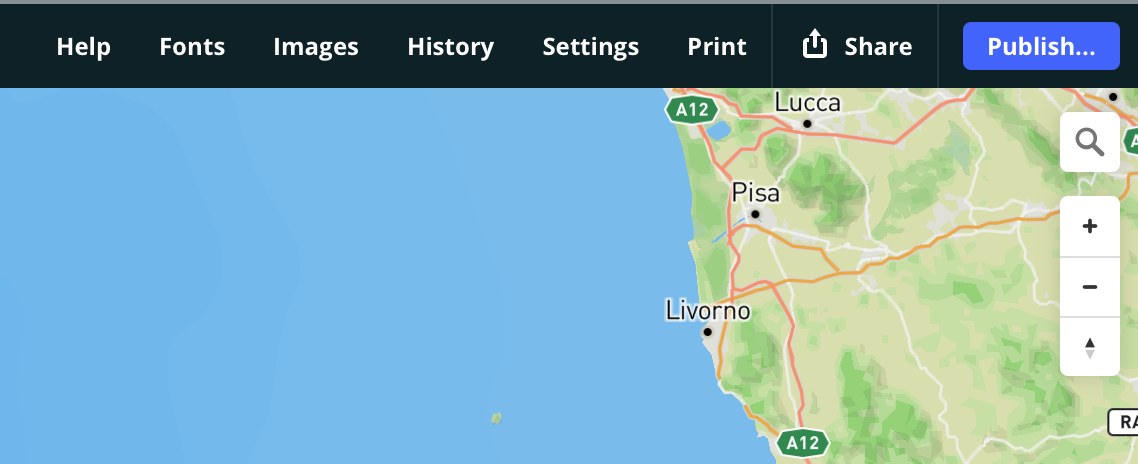
7. Click Share, stay on the Production tab, and copy the Style URL under Developer resources. It starts with mapbox://styles/.
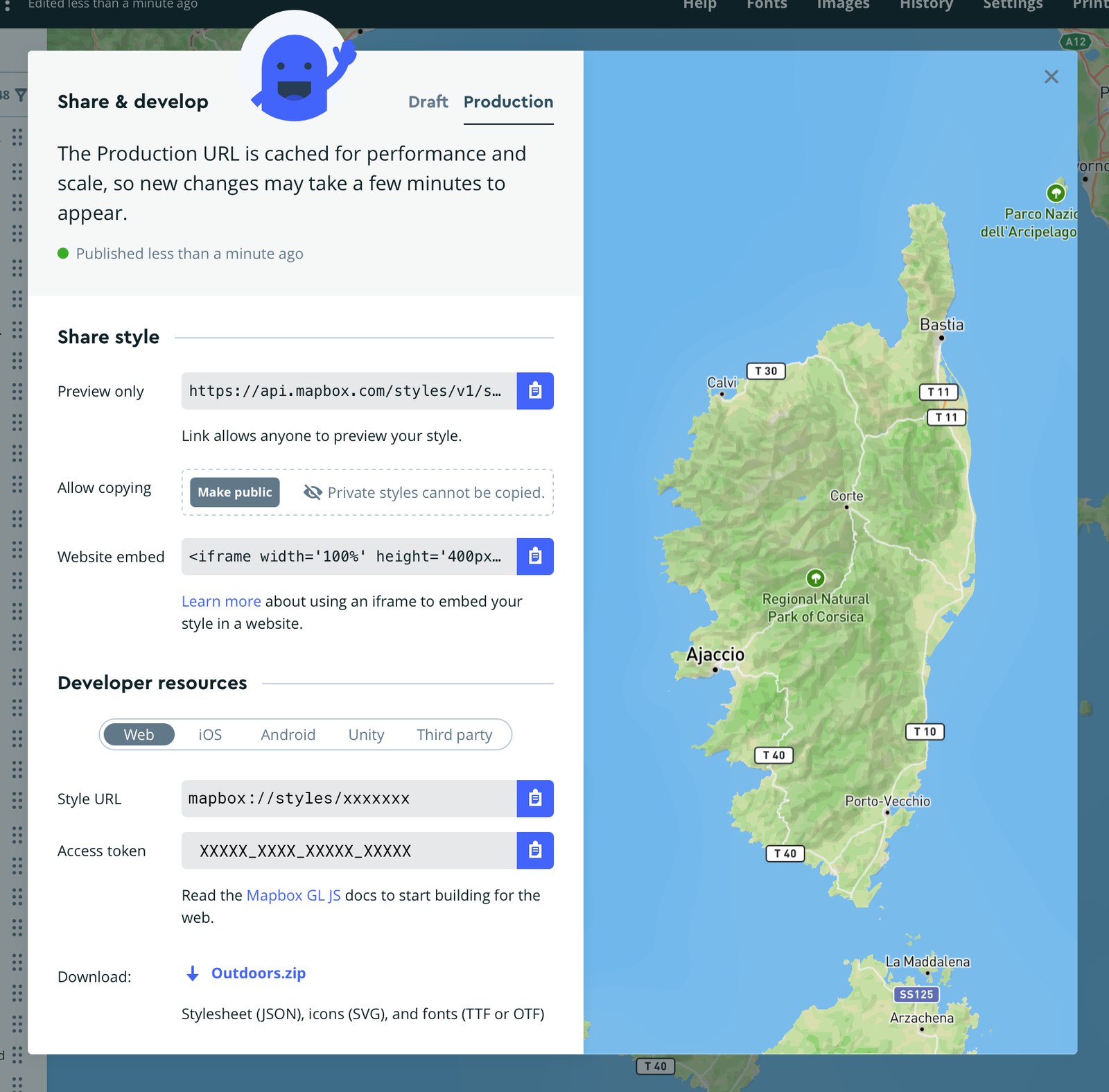
Why not Standard? Standard is Mapbox's newest style system, and it can't be captured as an image. You'd get a black frame. TerrainStudio checks when you add a style and tells you if it's a Standard one, but starting from a classic style saves you the round trip.
Published changes take a moment. Mapbox caches published styles, so after you publish an edit it can take a few minutes before a new capture shows it.
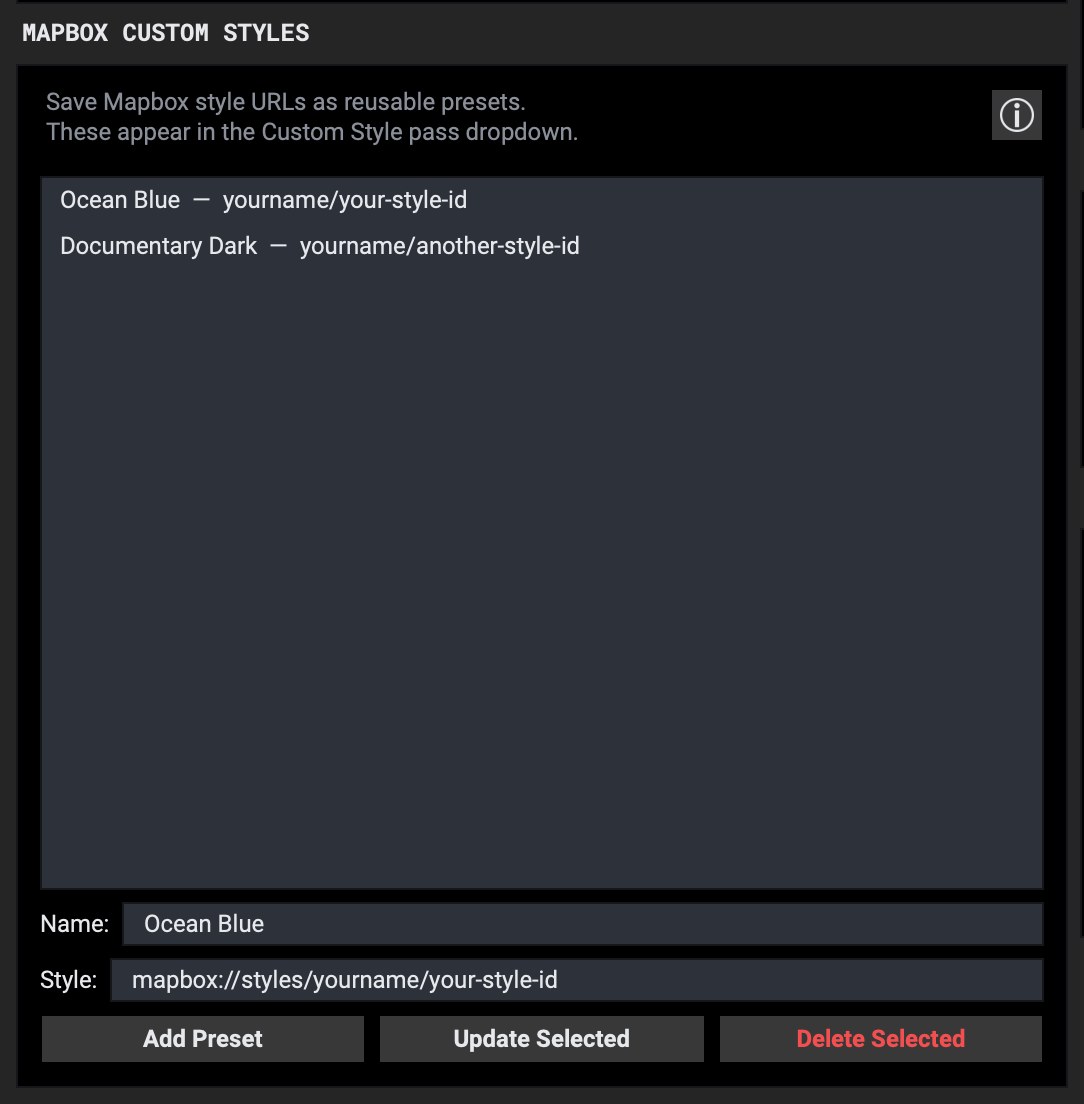
8. In Settings → API SETTINGS, find Mapbox Custom Styles. Give the style a name you'll recognise, paste the Style URL, and click Add Preset. It also accepts the Share link or the address from the Studio editor; any of them works.
9. On the main screen, click the MAPBOX CUSTOM tile, then the small mark in its corner to pick which of your styles to capture. Each one you pick becomes its own layer, and its file is named after the style, so several looks can come out of one capture.
One account, your styles. The style has to belong to the same Mapbox account as your key. If TerrainStudio says it can't find a style, check that it's published and that you copied it from the account whose key you saved.
TerrainStudio writes the Mapbox and OpenStreetMap credits into every custom-style file. Those are the two credits Mapbox asks for when a map is shown.
